
The Complete Guide to Shopify Combined Listings (2026)

Combined listings on Shopify is a native feature that links several separate product records (for example, one product per colorway) into a single storefront page. Customers see one unified buying experience and switch between options using swatches or buttons, but each option has its own URL, SKU, and inventory count underneath. This gives merchants the SEO and inventory benefits of separate products with the browsing simplicity of a single product page. Apps like OPTIS Color Swatch extend the experience with richer swatch UI, image swatches, and tooltips on top of the native feature.
At a glance
- What it is
- Native Shopify feature linking multiple product records as one storefront page
- Cost
- Native feature is free (eligibility depends on plan); enhancement apps charge separately
- Max child products
- Up to 60 per combined listing, 3 options, 2,000 option values (Shopify Help Center, Sep 2026)
- Each option gets its own
- URL, SKU, inventory, structured data
- Best fit
- Fashion or furniture catalogs split by colorway; electronics by storage size
- Enhancement app
- OPTIS Color Swatch - image swatches, tooltips, custom shape (from $11.90/mo, 30-day free trial)
- Setup time
- 30 to 60 minutes per listing (more for migrations from variants)
- Last updated
- June 2026
In this article
- When combined listings is the right tool
- Combined listings vs variants vs separate products: 3-way decision matrix
- Native Shopify combined listings: step-by-step setup
- Limitations of native combined listings
- When to extend with an app
- SEO implications of combined listings
- 3 store case patterns
- Migration: variants to combined listings (and when not to)
When combined listings is the right tool
Three structures handle multi-option products on Shopify: combined listings, native variants, and separate products. This guide covers when to use each, how to set up combined listings natively, their SEO implications, and where an app extends what is possible.
Combined listings vs variants vs separate products: 3-way decision matrix
Ten criteria across the three structures. This is the most useful single reference in the article.
| Criterion | Combined listings | Native variants | Separate products |
|---|---|---|---|
| Each option has its own URL | Yes | No (one URL) | Yes |
| Individual inventory per option | Yes | Yes | Yes |
| Individual SEO per option | Yes | No | Yes |
| Shared product page for browsing | Yes | Yes | No |
| Max options supported | Up to 60 child products, 3 options | 2,048 variant combinations | Unlimited |
| Switch options without leaving page | Yes | Yes | No (new page load) |
| Works with Shopify Markets | Yes | Yes | Yes |
| Requires separate product records | Yes | No | Yes |
| Setup complexity | Medium | Low | Low to medium |
| Best for | Fashion, footwear, furniture by colorway | Simple size/colour grids with shared inventory | Unrelated products loosely cross-linked |
Native Shopify combined listings: step-by-step setup
Combined listings are available natively on eligible Shopify plans. Verify access on your store before starting (Shopify admin -> Products -> look for a Combined listing option on the product editor).
- Step 1. In Shopify admin go to Products. Choose the product that will be the parent of the combined listing (typically the most popular variant). Open the product editor.
- Step 2. Find the Combined listing section in the product editor. Location may vary by plan and admin version; check the Shopify Help Center for the current path.
- Step 3. Search for and add child products. Each child becomes a separate option visible on the parent page. Shopify currently supports up to 60 child products and 3 options per combined listing.
- Step 4. Configure how options display on the storefront: swatches, buttons, or dropdowns. Map option values to images or hex codes where supported.
- Step 5. Publish and verify the combined listing on the storefront. Test each child option, confirm inventory updates correctly, and check that each child URL resolves independently.
Limitations of native combined listings
| Limitation | Details | Workaround |
|---|---|---|
| Maximum child products | 60 products per combined listing, with up to 2,000 option values in total | Split larger catalogs into multiple combined listings |
| Option styling control | Native UI offers basic swatch or button display; limited styling | Use OPTIS Color Swatch for custom shape, image swatches, tooltips |
| App compatibility | Not every Shopify app supports combined listings; some product options apps conflict | Test on a development store before going live; check vendor docs |
| B2B and Shopify Markets edge cases | Some combined listing features may have B2B-specific limitations | Verify on your B2B setup before migrating catalog |
| Structured data | Native does not automatically emit ProductGroup schema | Add manually via theme customisation or via OPTIS Color Swatch |
When to extend with an app
Native combined listings work well for the basics. Three specific scenarios where OPTIS Color Swatch adds value on top:
- You want image swatches showing the actual product photo per colorway rather than circle hex swatches. OPTIS supports upload of swatch images for patterns and textures.
- You want swatch tooltips showing colour name on hover. Reduces shopper friction when the colour name is meaningful (Forest Green vs Olive).
- You want collection-page swatches. OPTIS surfaces swatches on collection cards so shoppers select a colour before entering the product page.
SEO implications of combined listings
Most competitor articles on combined listings skip SEO. This is the section that distinguishes this guide.
Individual URLs and indexability
Each child product in a combined listing has its own URL. Shopify's default behavior keeps child URLs crawlable. This is good for SEO when each colorway has unique imagery, distinct descriptions, or reviews tied to specific options. Recommendation: keep child URLs indexed when content meaningfully differs across options.
Canonical tag strategy
Consolidate to parent with a canonical tag when child product pages are thin: only differ by colour with otherwise identical descriptions and identical reviews. Thin variant pages cannibalise the parent's ranking signals.
Keep separate canonicals when each child has a distinct hero image, unique name mentions in descriptions, or different customer reviews. Each child can rank for its own colour-modifier query (Red maxi dress vs Blue maxi dress).
Structured data for multi-URL products
Add ProductGroup or ItemList schema to the parent combined listing page to signal the relationship to search engines. Native Shopify does not emit this automatically. Set it via theme customisation, a structured data app, or via OPTIS Color Swatch, which generates the schema on the parent page.
3 store case patterns
Pattern 1: Fashion store, one product per colorway
Example. A dress available in 8 colors, each with its own hero photo and styling. Each colour is a separate product record.
Why combined listings work. Each colorway has unique imagery and the buyer compares visually. Separate URLs let each colour rank for [colour] [product] queries. The combined listing gives one shared product page.
App add. OPTIS Color Swatch shows image swatches with the actual dress in each colour, plus tooltips with colour names. See our color swatches guide for the full setup.
Pattern 2: Electronics by storage size
Example. A phone case in 64GB / 128GB / 256GB variants that are actually separate products due to different SKUs and fulfilment lead times.
Why combined listings work. Buyer navigates one page, selects storage, sees the correct price and inventory. Each storage SKU keeps its own inventory and fulfilment routing.
Decision point. This case can also be handled with native variants if SKUs share inventory pool. Use the decision matrix above to choose.
Pattern 3: Food and beverage by flavour
Example. A hot sauce brand with 6 flavours, each as a separate product due to different supplier costs and inventory.
Why combined listings work. Customer browses flavours on one page; individual SKUs managed separately for procurement.
App add. OPTIS Product Options can add a Quantity-per-flavour input on top of the combined listing for mix-and-match multipack orders. See our personalization playbook for option-set patterns.
Migration: variants to combined listings (and when not to)
Migration is time-consuming and carries SEO risk if done poorly. Only migrate when the benefits (individual URLs, per-option SEO, distinct imagery) are clearly needed.
- Step 1. Create new product records for each current variant that needs its own URL. Use existing variant data (price, weight, SKU, inventory) as the seed.
- Step 2. Migrate images, descriptions, and metafields to each new product. Each new product needs a distinct hero image and at least one description sentence that differs.
- Step 3. Set up 301 redirects from any old variant URL parameters (`?variant=123456`) to the corresponding new product URLs. If you cannot 301 (older theme), use canonical tags instead.
- Step 4. Build the combined listing grouping the new products. Verify the storefront displays all options correctly.
- Step 5. Monitor Google Search Console for crawl errors and coverage issues for 4 weeks post-migration. Watch for soft 404s and duplicate content warnings.
Common questions
Is Shopify combined listings free?
The native combined listings feature is free to use within Shopify admin, though access may depend on your Shopify plan. Verify eligibility in your store admin. Apps that enhance the combined listings experience, such as OPTIS Color Swatch (from $11.90/mo based on your Shopify plan), cost extra and add image swatches, tooltips, and ProductGroup schema generation.
How many products can I combine in one combined listing?
As of September 2026, the Shopify Help Center lists up to 60 child products, 3 options, and 2,000 option values in total per combined listing. Shopify has changed these limits before, so check the Help Center before a large migration. If a listing needs more than 60 child products, split it into multiple combined listings or use a different product structure.
Does combined listings hurt SEO?
No - done correctly, combined listings can improve SEO by giving each major product option (each colorway, each storage size) its own indexable URL with unique content. The key is managing canonical tags properly. If child pages have thin content (only differ by colour name with identical descriptions), consolidate them to the parent URL via canonicals. If each child has unique images and descriptions, keep them indexed independently.
Can I use combined listings with Shopify Markets?
Yes, combined listings are compatible with Shopify Markets. Verify any specific limitations for international pricing or currency display on your Markets setup, since Shopify frequently updates Markets features. Multi-currency display works on both parent and child product pages within a combined listing.
How is combined listings different from product variants?
Product variants are rows within a single product record: they share one URL, one product page, and one set of images (unless you add variant-specific images). Combined listings are separate product records that are visually linked on the storefront. The main difference: combined listings give each option its own URL and product record, which matters for SEO and per-option inventory management.
Do apps like OPTIS work with combined listings?
Yes. OPTIS Color Swatch is designed to work as a swatch UI layer on top of Shopify combined listings, replacing or enhancing the default swatch display. OPTIS Product Options can also add option fields (text inputs, file uploads) to child products within a combined listing. Test on a development store before deploying to production.
Next steps
If you are evaluating combined listings vs your current variant setup, run the 3-way decision matrix against your catalog. If each option genuinely needs its own URL and unique imagery, follow the 5-step native setup. If you also want image swatches or collection-page swatch surfacing, OPTIS Color Swatch layers on top: paid plans start at $11.90/mo based on your Shopify plan, with a 30-day free trial, and every paid plan includes core swatch features and combined listings enhancements.
For products inside the combined listing that need personalization (engraving, monogramming, file upload), add OPTIS Product Options for the per-product option layer. If you would rather have our team scope the setup, talk to the team.
Keep reading
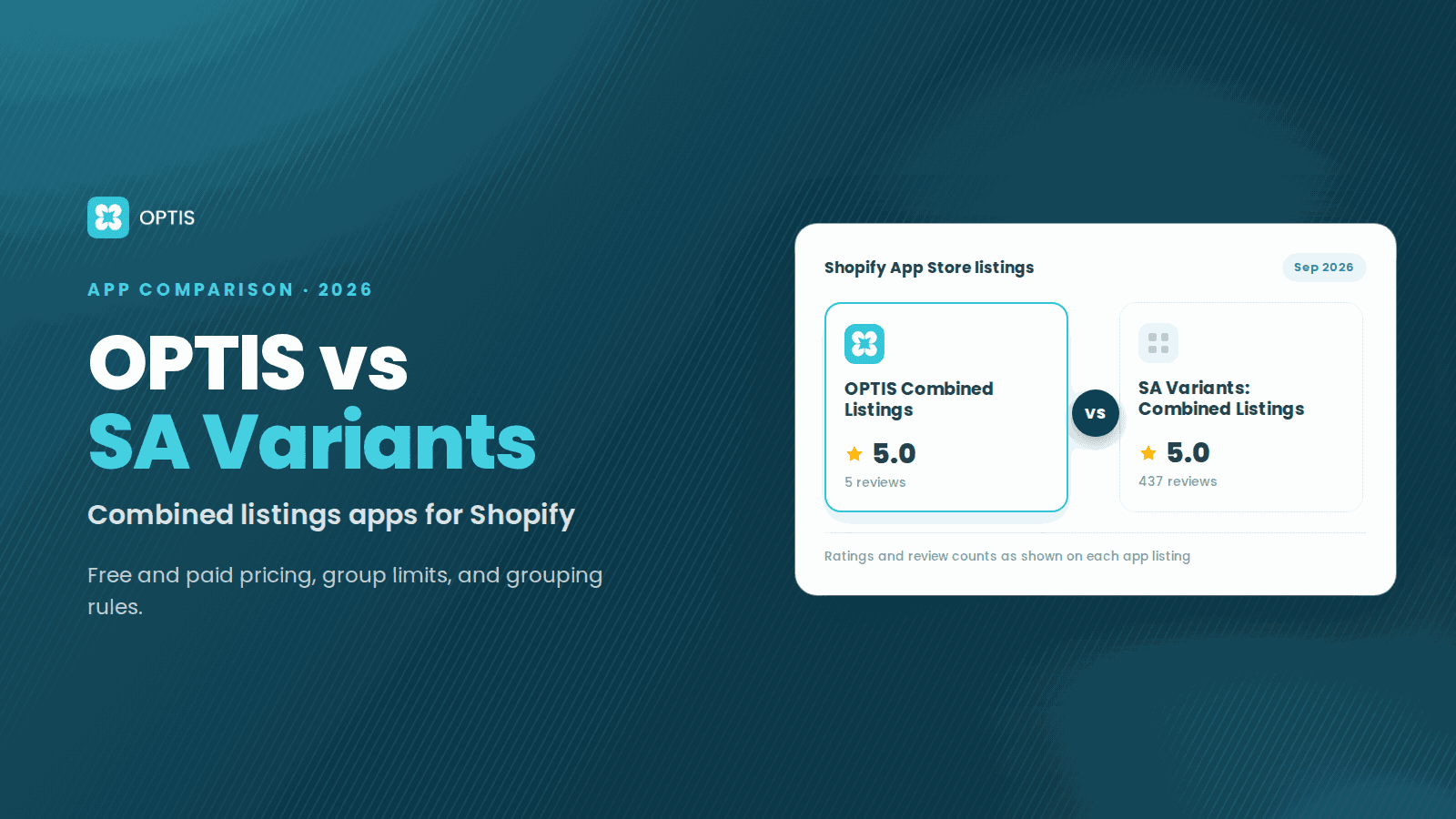
OPTIS Combined Listings vs SA Variants (2026)
OPTIS Combined Listings vs SA Variants for Shopify (2026): free vs paid pricing, group limits, Auto Groups vs AI grouping, and which app fits which store.
7 min read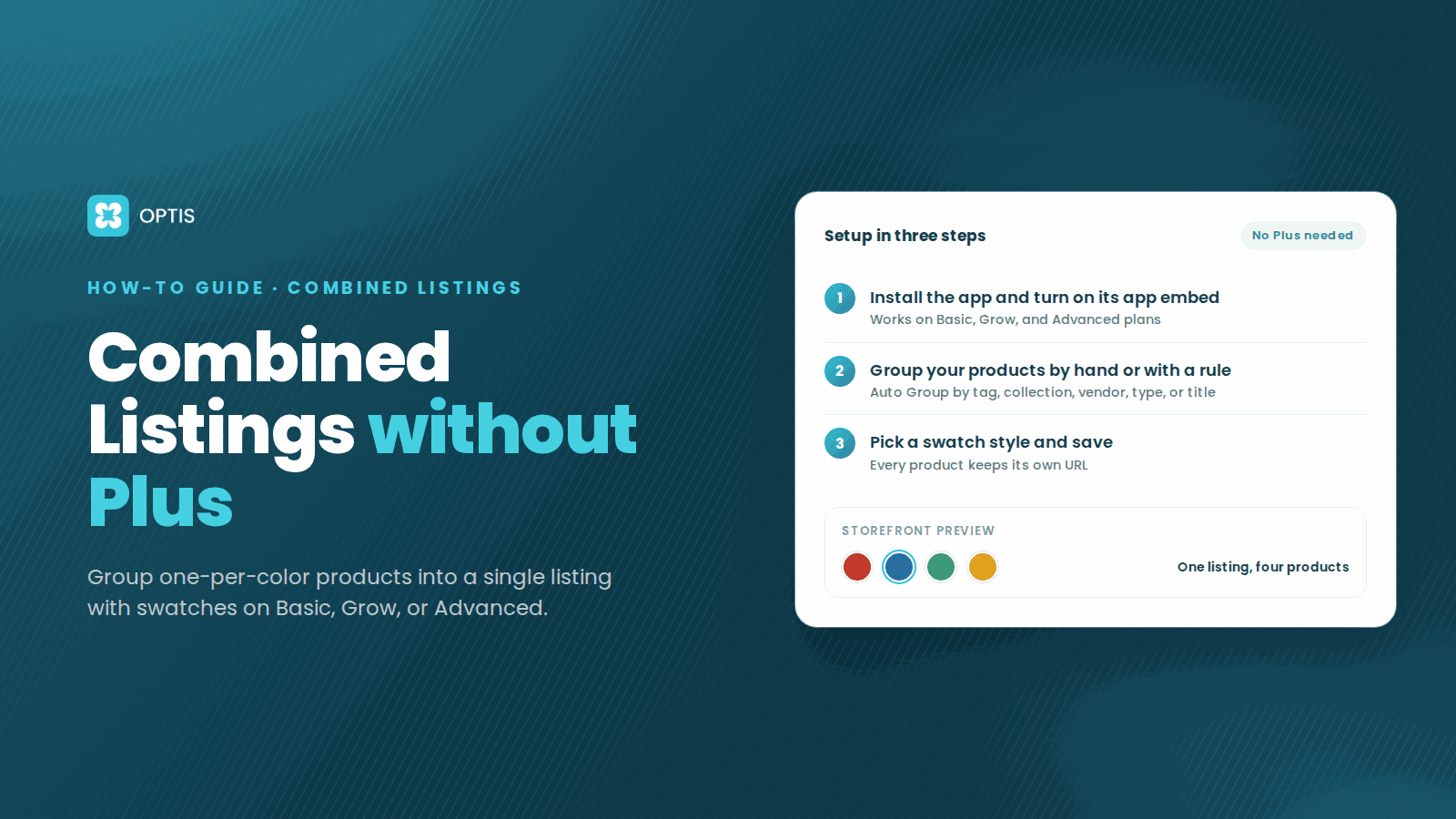
Shopify Combined Listings Without Plus: Step-by-Step
No Shopify Plus? Combine products into one listing with swatches on Basic, Grow, or Advanced. Step-by-step setup with the free OPTIS Combined Listings app.
8 min read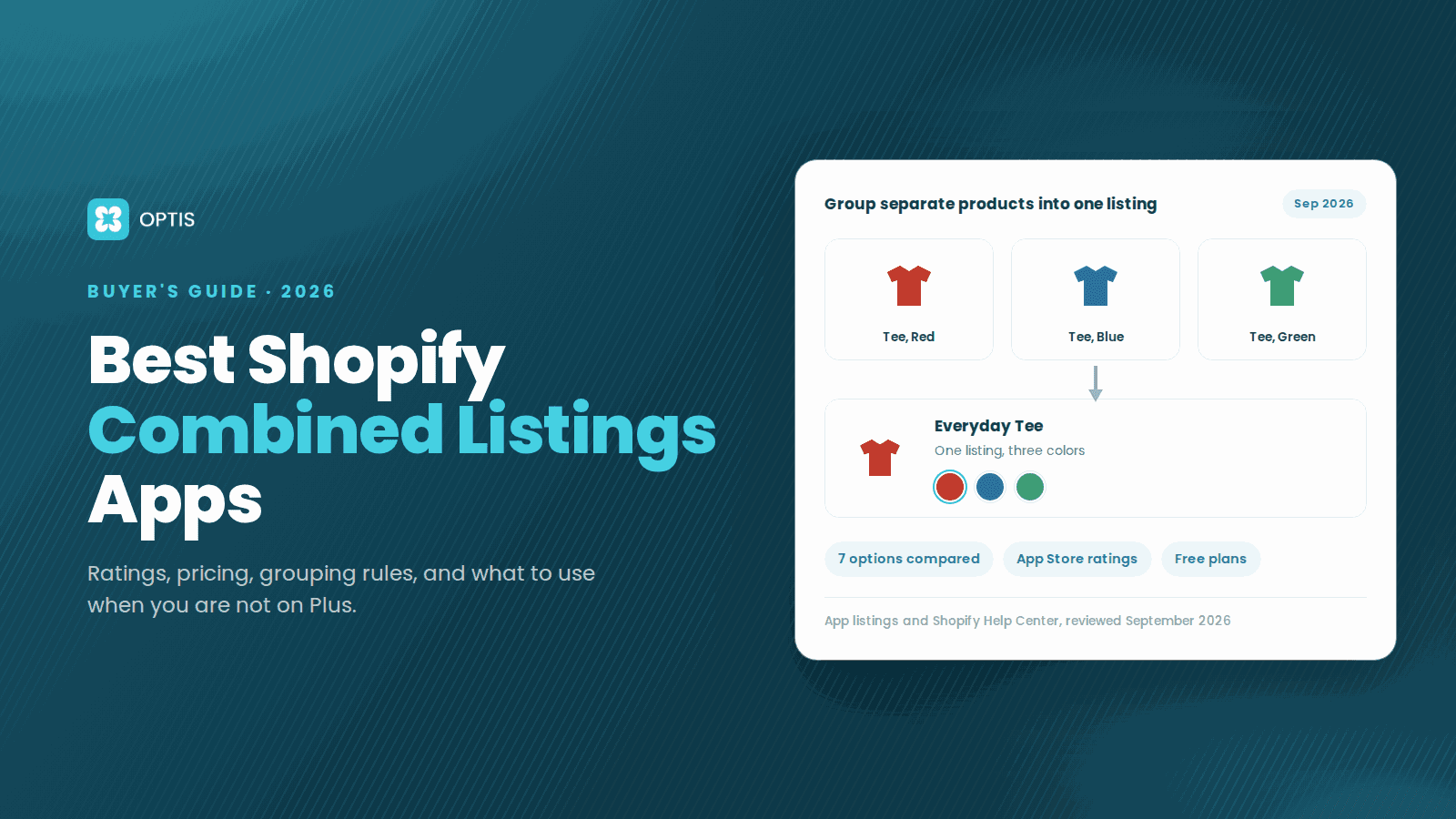
Best Shopify Combined Listings Apps 2026 (Compared)
Compare the best Shopify combined listings apps for 2026: ratings, pricing, grouping rules, and honest weaknesses, plus what to use if you are not on Plus.
11 min read