
How to Add Image Upload to a Shopify Product Page (2026)

Native Shopify product pages do not support customer file uploads. To accept image uploads (photos for printing, design files, reference images) install a product options app like OPTIS Product Options. Enable the File Upload option type, set accepted formats (JPG, PNG, PDF, up to 10MB default), and assign it to the relevant products. Uploaded files attach to the order as line-item properties, visible to you in admin and on the packing slip.
At a glance
- Native Shopify file upload support
- No (variants are predefined; no shopper input field)
- Solution
- OPTIS Product Options - File Upload option type
- Supported formats
- JPG, PNG, GIF, PDF, SVG, WEBP
- Default max file size
- 10MB (configurable per field)
- Required plan
- OPTIS Advanced ($9.99/mo) - file upload included; Platinum ($19.99/mo) for up to 20 uploads
- Where uploads appear
- Order admin (line-item property URL), packing slip, order confirmation email
- Setup time
- ~10 minutes
- Last updated
- June 2026
In this article
Why native Shopify cannot do this
Shopify image upload product page setups always need an app: native Shopify variants are predefined (Size, Colour, Material) with finite values, and there is no native shopper input field for free text, file upload, or custom data submission.
Shopify's line-item properties feature technically allows custom data to be attached to cart items, but implementing it natively requires custom Liquid code and a third-party storage solution for the actual file. A product options app abstracts both into a no-code toggle. See the personalization playbook for the broader pattern.
5-step setup with OPTIS Product Options
Setup time: about 10 minutes from app install to live on first product.
- 1
Install OPTIS Product Options from the Shopify App Store
Search OPTIS Product Options, Variant on the App Store and install. The app is Built-for-Shopify certified and uses Theme App Extensions (no theme code edits, clean uninstall). File upload requires the Advanced plan ($9.99/mo) or higher; you can install on free first to validate the rest of the setup.
- 2
Create a new Option Set
In the OPTIS dashboard, create a new Option Set. Name it for the use case (Custom Photo Upload, Design File, Reference Image). Pick a template or start blank.
- 3
Add a File Upload field
Add a new field of type File Upload. Configure accepted file types (JPG, PNG, PDF) and maximum file size (default 10MB, configurable per field). Add clear placeholder text so customers know what to upload.
- 4
Set required, helper text, and conditional rules
If the file is mandatory (POD), mark the field Required so OPTIS blocks add-to-cart without an upload. Add a helper instruction (Upload your design file at minimum 300 DPI, max 10MB). For variant-conditional uploads (only show if Custom design is selected), add a conditional logic rule.
- 5
Assign to products and verify
Assign the Option Set to relevant products or a collection. Save. Open the product page on the storefront and place a test order with a file upload. Verify the file URL appears in Shopify admin -> Orders -> [order] -> line-item properties.
File format and size reference
Pick the formats and limits that match your fulfillment workflow. Wider acceptance equals fewer rejected orders; tighter limits equal fewer support tickets.
| Format | Max recommended size | Best for | Notes |
|---|---|---|---|
| JPG | 10MB | Product photos, reference images | Lossy compression; acceptable for print files under 300 DPI |
| PNG | 10MB | Logos, artwork with transparency | Lossless; larger files than JPG for same image |
| 10MB | Print-ready design files, multi-page docs | Preferred by most print-on-demand vendors | |
| SVG | 5MB | Vector graphics, logos for cut/engrave machines | Scalable; ideal for laser engraving workflows |
| WEBP | 10MB | Web images, modern photo formats | Not accepted by all print workflows: verify with your printer |
| GIF | 5MB | Animated references (rare) | Enable only if your fulfillment process needs it |
Common questions
Can I require the image upload before a customer can add to cart?
Yes. In the OPTIS option field settings, toggle the field to Required. If a customer clicks Add to Cart without uploading a file, OPTIS displays a validation message and blocks the add-to-cart action until the file is provided. Prevents incomplete orders from reaching fulfillment.
What file types does OPTIS accept for customer uploads?
OPTIS supports JPG, PNG, GIF, PDF, SVG, and WEBP. Configure which types are accepted per option field. For example: accept only PDF and PNG for a print-on-demand product while blocking GIF. Default maximum file size is 10MB on the Platinum plan; lower limits can be set per field for tighter control.
Where do customer-uploaded files appear in my Shopify admin?
Uploaded files attach to the order as line-item properties. Open the order in Shopify admin and the file appears as a URL in the line-item properties section. OPTIS also surfaces the file link on the packing slip if order settings are enabled. Files download directly from the order detail page or the packing slip URL.
Do uploaded files count against my Shopify storage quota?
No. OPTIS hosts uploaded files in its own storage and provides a URL to each file via the order line-item property. Your Shopify storage is not affected. Files remain accessible for the order's lifetime and can be downloaded by your team or your fulfillment vendor as needed.
Can I limit who can upload files (e.g. only B2B customers)?
Yes via conditional logic. Configure the file upload field to show only when a specific variant or option is selected (Custom design plan only, Wholesale customers). Combined with OPTIS conditional rules, you can gate the upload behind any condition: product type, customer tag (with theme work), or another option field selection.
What happens to the file when the customer leaves and comes back to the cart?
The uploaded file persists with the cart session as long as the customer does not clear cookies or use a different device. If they return to a different device or after clearing browser data, they need to re-upload. The file is finalized when the order is placed and stored against the order line-item property at that point.
Next steps
Install OPTIS Product Options, Variant and validate the rest of the setup on the free plan. Upgrade to Advanced ($9.99/mo) when you are ready to enable file upload, or Platinum ($19.99/mo) if you need up to 20 uploads. Pilot on one product, place a real test order, verify the file shows in the order admin and packing slip, then roll out to the rest of the personalization catalog.
If your workflow combines uploads with other personalization fields (engraving, font choice, price add-ons) the personalization playbook has the full pattern. If you would rather have our team scope the setup, talk to the team.
Keep reading
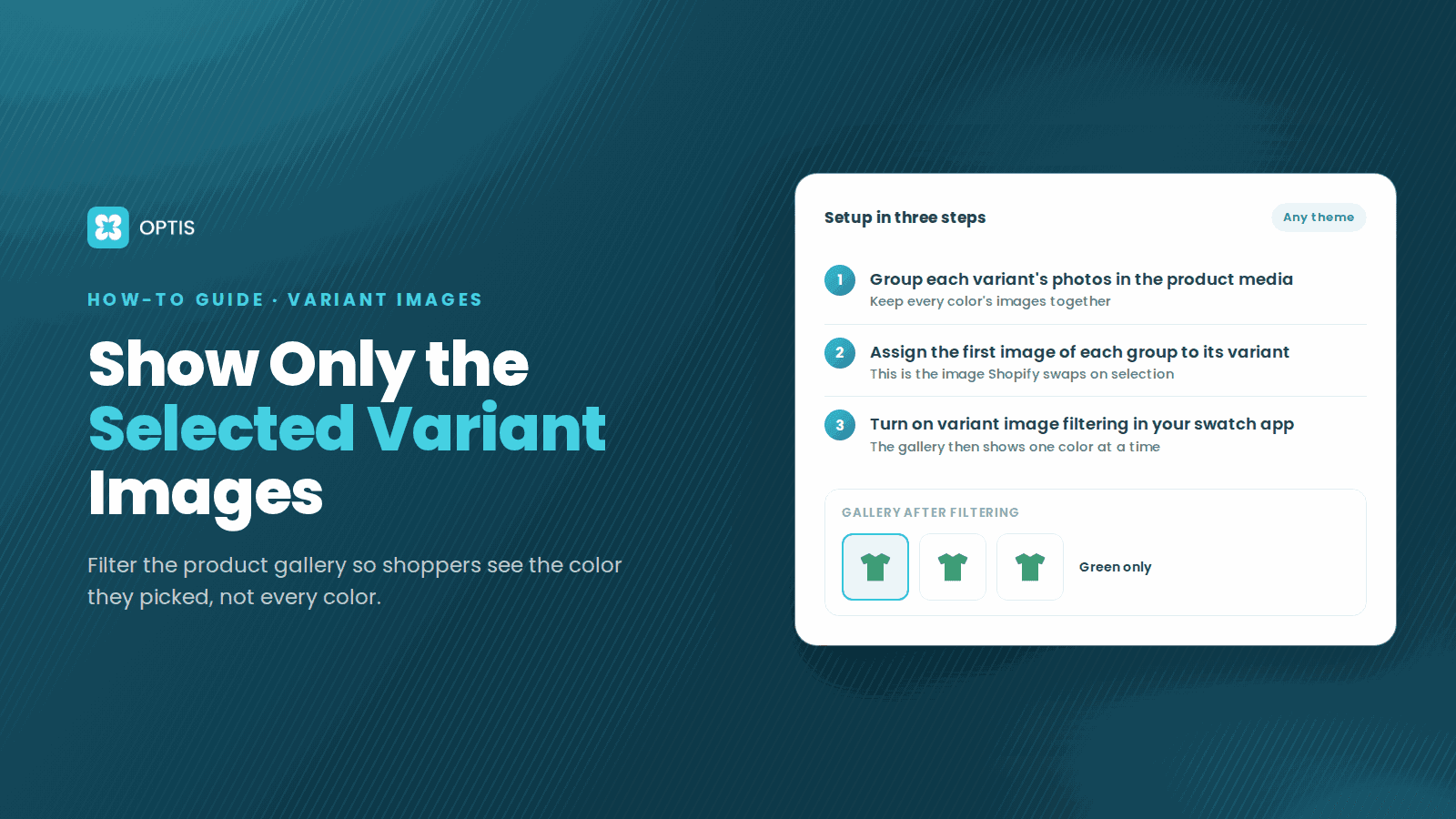
How to Show Only Selected Variant Images on Shopify
Shoppers pick Red but still scroll past blue photos? Learn how Shopify variant images work, what Dawn hides natively, and how to filter the gallery by variant.
8 min read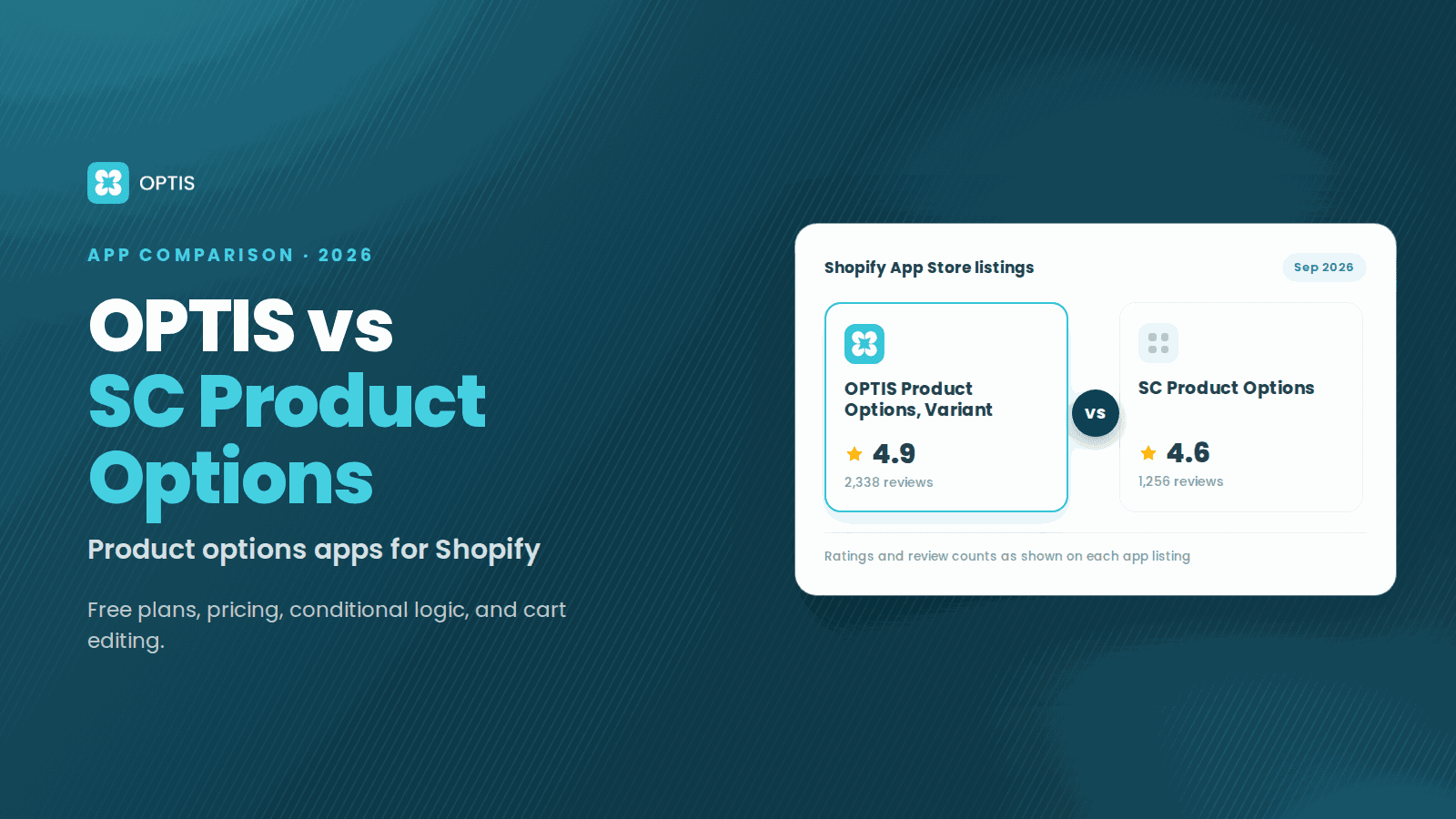
OPTIS vs SC Product Options (2026 Comparison)
OPTIS vs SC Product Options for Shopify (2026): free plans, pricing, conditional logic, cart editing, and which app fits your store, from live listings.
8 min read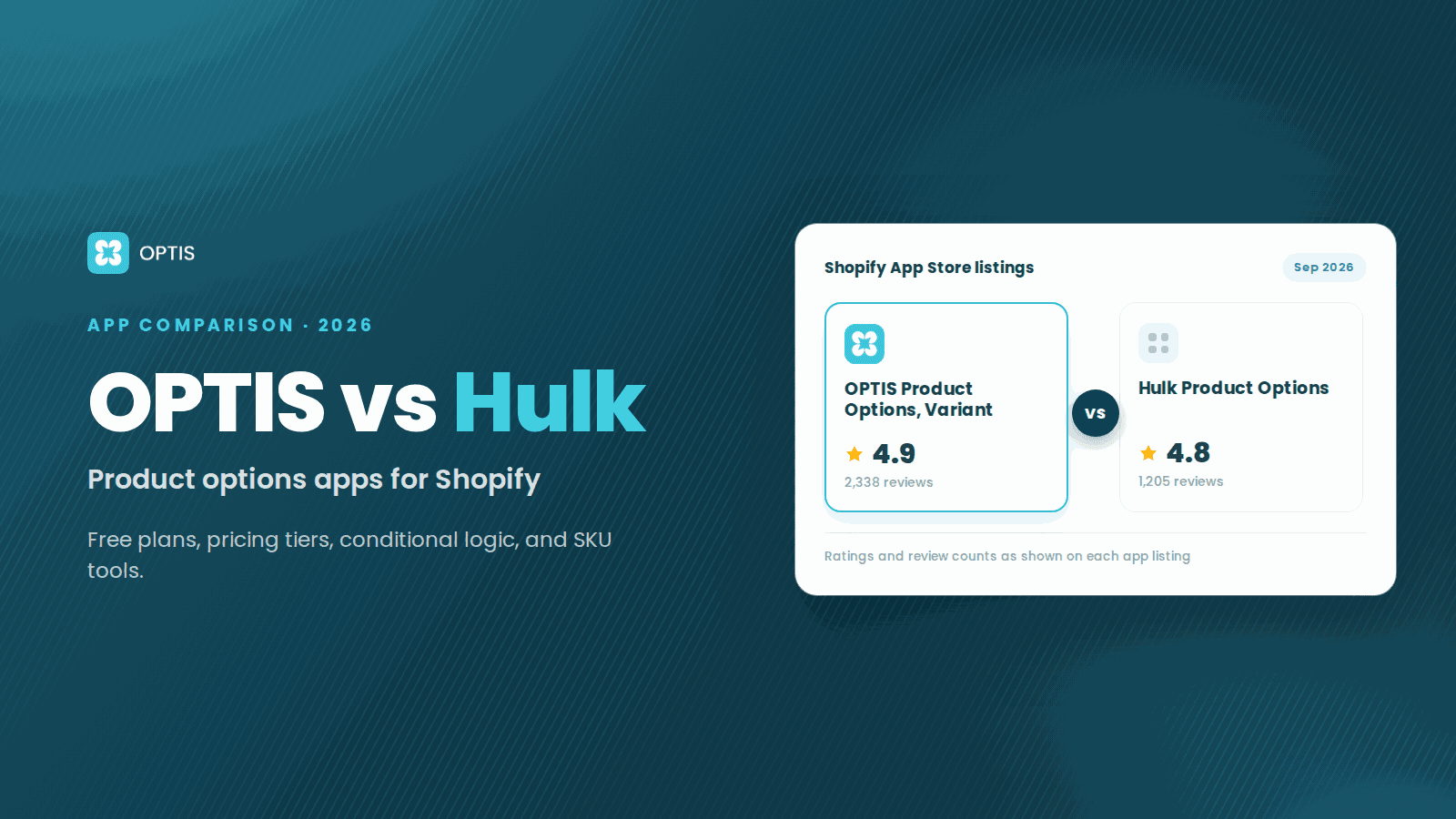
OPTIS vs Hulk Product Options (2026 Comparison)
OPTIS vs Hulk Product Options for Shopify (2026): free plans, pricing tiers, conditional logic, SKU tools, and which app fits your store, from live listings.
8 min read