
How to Show Only Selected Variant Images on Shopify
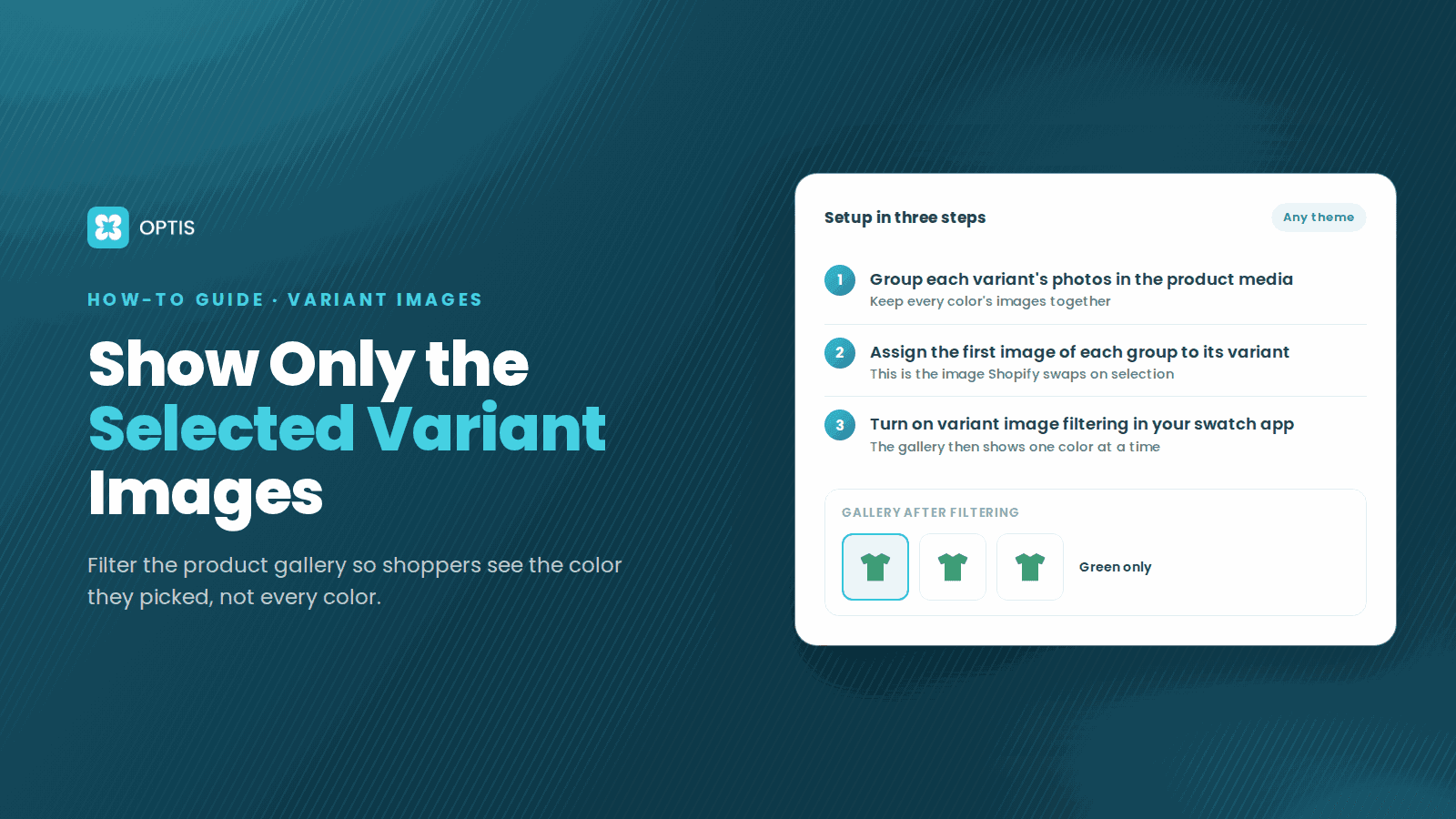
Shopify lets you attach only one image to each variant, and the rest of a product's photos sit in one shared gallery, so most themes keep showing every color's images after a shopper picks one. Dawn has a Hide other variant media after one is selected setting, but it hides only the single image attached to each other variant. To show a full set of photos per variant, group each variant's images in the product media, assign the first image of each group to its variant, and turn on Variant Images in an app such as OPTIS Color Swatch Variants.
At a glance
- Who this is for
- Stores selling one product in several colors or styles, each with its own set of photos
- Shopify native limit
- One image per variant; videos and 3D models cannot be attached to variants (Shopify Help Center, September 2026)
- Dawn setting
- Hide other variant media after one is selected, off by default (Dawn source on GitHub, v16.0.0)
- Other themes
- Depends on your theme; check its product section settings
- App option
- OPTIS Color Swatch Variants, Variant Images feature
- App Store listing
- OP Color Swatch Variant Images, 5.0 from 802 reviews, Built for Shopify (checked September 14, 2026)
- Price
- From $11.90/month on Shopify Basic, 30-day free trial; free only on trial, development, Pause & Build, and staff stores
In this article
- Why your product gallery shows every variant's images
- What Dawn actually does when a shopper picks a variant
- No-app workarounds, and what they cost you
- Before you start: organize your product media
- How to show only the selected variant's images with OPTIS
- Shared photos, the featured image, and per-product control
- If the gallery still shows every image
- Other apps that filter the gallery by variant
Why your product gallery shows every variant's images
Picture a Crochet Polo sold in Green, Sand, and Black, with four photos per color. A shopper taps Green, the main image switches, but the thumbnail strip still offers sand and black photos. On mobile they swipe through twelve images to see the four that matter.
The cause is how Shopify stores product media. According to the Shopify Help Center page on adding images to product variants, you can add only one image to each variant, and variants do not support other media such as videos or 3D models. Every other photo lives in the product's shared media gallery.
Shopify suggests arranging a variant's images in sequence in the gallery and assigning one of them to the variant. When a shopper selects it, the assigned image shows as the preview, and they scroll the gallery for the rest. Whether other variants' images are hidden is up to your theme.
What Dawn actually does when a shopper picks a variant
Dawn is Shopify's reference theme, and its source is public on GitHub. We read the main branch (theme version 16.0.0) on September 14, 2026. Here is what the code shows.
- By default, nothing is hidden. When the variant changes, `product-info.js` calls the gallery's `setActiveMedia` with its prepend option on. In `media-gallery.js`, that moves the variant's featured image, and its thumbnail, to the front of the gallery. Every other image stays in the list.
- There is an opt-in setting. The Product information section has a checkbox labeled Hide other variant media after one is selected (setting id `hide_variants`), and its default is off.
- It hides only images attached to variants. When the setting is on, `snippets/product-media-gallery.liquid` collects the images attached to any variant, shows the selected variant's image first, and skips the images attached to other variants. Images not attached to any variant are still shown.
No-app workarounds, and what they cost you
If you want to filter a full set of images per variant without an app, the common approaches all involve theme code. None of them are official Shopify features.
- One photo per variant plus Dawn's setting. No code, but each color gets a single image, which is rarely enough for apparel or home goods.
- Alt text or file name conventions plus custom theme code. A developer labels each image with its variant name, for example alt text `Green`, then edits the gallery template and variant change script to hide non-matching images. You own that code, and a theme update can overwrite it.
- One product per color. Each color becomes its own product with its own gallery, and swatches link the products together. That changes your catalog structure; our Shopify combined listings guide covers when that trade-off is worth it.
Before you start: organize your product media
- Upload every photo to the product first. Put each color's photos into the product's Media section.
- Order the images in groups. Keep all Green photos together, then all Sand photos, then all Black photos, with the best shot of each color first in its group.
- Decide on shared images. Size guides or lifestyle shots that apply to every color can go at the top of the gallery as common images.
How to show only the selected variant's images with OPTIS
These steps follow the OPTIS Color Swatch Variants documentation. Menu names match the app and the Shopify admin.
- 1
Install OPTIS Color Swatch Variants
Search for OP Color Swatch Variant Images on the Shopify App Store and install it. Live stores start a 30-day free trial; the app is free on Shopify trial, development, Pause & Build, and staff stores.
- 2
Turn on the app embed
In the App Dashboard, open Setup Guide and click Activate the app. In the Theme Editor, turn on the OPTIS Swatch app embed toggle and click Save. To test first, go to Online Store, Themes, edit a draft theme, open App embeds, and enable it there.
- 3
Enable Variant Images
In the app, open Variant Images and switch on the Variant Images toggle.
- 4
Group each variant's images in the product media
In the Shopify admin, open Products, select the product, and in the Media section drag the images into one group per variant. Put the primary image for each variant first in its group.
- 5
Assign each group's first image to its variant
In the Variants section, click the image icon next to each variant and pick the first image of that variant's group, then click Done and Save. Select the image already uploaded to the product rather than uploading a new copy, because the first image in the group must be the same file as the variant image.
- 6
Add common images and set the scope
Optional: move images shared by every variant, such as a size guide, to the top of the product gallery and save; they are treated as Common Images. Under Select app scope, choose All products, Specific products (tagged op_vi_enabled), or Excluded products (tagged op_vi_disabled).
- 7
Test on the product page
Open the product on your storefront, select each variant, and confirm the gallery shows the common images plus only that variant's group, on mobile and desktop.
If the gallery still shows every image
- Images are not grouped correctly. Each variant's photos must sit together, with no photo from another color inside the group.
- The first image does not match the variant image. The first image in each group must be the image assigned to that variant.
- The variant image was re-uploaded. Reassign it from the images already on the product instead of a new copy.
- The app embed is off on the theme you are viewing. Enable it on that theme and save.
- Your theme behaves differently. Theme galleries vary; contact the OPTIS support team if the result looks wrong.
Other apps that filter the gallery by variant
OPTIS is not the only option. Other swatch apps such as Rubik Variant Images & Swatch also list showing only the selected variant's images. They differ in pricing, image assignment tools, and what else comes in the plan.
Common questions
Can Shopify show only the selected variant's images without an app?
Partly. Shopify allows one image per variant, and Dawn's Hide other variant media after one is selected setting hides the images attached to other variants. Extra photos not attached to a variant still show. Filtering a full photo set per variant needs custom theme code or an app.
How many images can I add to a Shopify variant?
One. The Shopify Help Center states you can add only one image to each product variant, and variants do not support videos or 3D models. Additional photos go in the product's media gallery.
Where is the hide variant images setting in Dawn?
In the Theme Editor, open a product template and select the Product information section. The checkbox is labeled Hide other variant media after one is selected and is off by default. Other themes may name it differently or not have it.
How does OPTIS know which images belong to which variant?
You group each variant's images together in the Shopify product media, with the primary image first, and assign that primary image to the variant. The first image in each group must be the same file as the variant image.
Can I keep a size guide visible for every color?
Yes. In OPTIS, images at the top of the product gallery, before any variant group, are treated as Common Images for every variant.
Is OPTIS Color Swatch Variants free?
Only on Shopify trial, development, Pause & Build, and staff stores. Live stores pay by Shopify plan, from $11.90/month on Basic, with a 30-day free trial. Every paid plan includes swatches, variant images, and product groups.
Next steps
Pick one product with several colors and a full photo set per color. Group its media, assign each group's first image to its variant, install OPTIS Color Swatch Variants on a draft theme, and turn on Variant Images. Once each color shows only its own photos, roll it out with the app scope setting.
Still weighing options? Read the color swatch apps comparison, or talk to the team about an unusual theme.
Keep reading

Shopify 100 Variant Limit: 2026 Workaround Guide
Shopify raised the variant limit to 2,048 on Oct 15, 2025. What did and didn't change, plus four workarounds for what's still unsolved. Updated 2026.
12 min read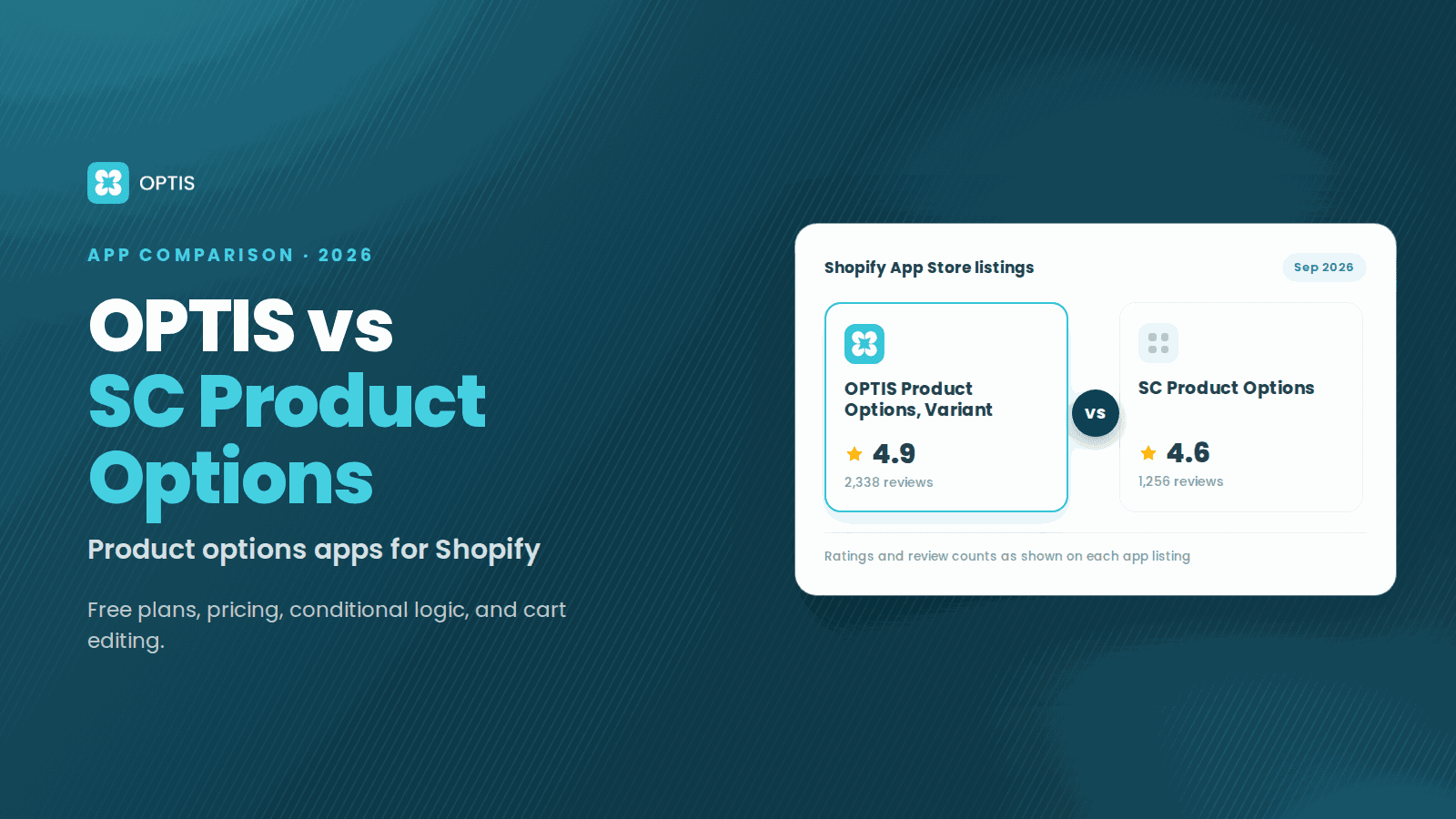
OPTIS vs SC Product Options (2026 Comparison)
OPTIS vs SC Product Options for Shopify (2026): free plans, pricing, conditional logic, cart editing, and which app fits your store, from live listings.
8 min read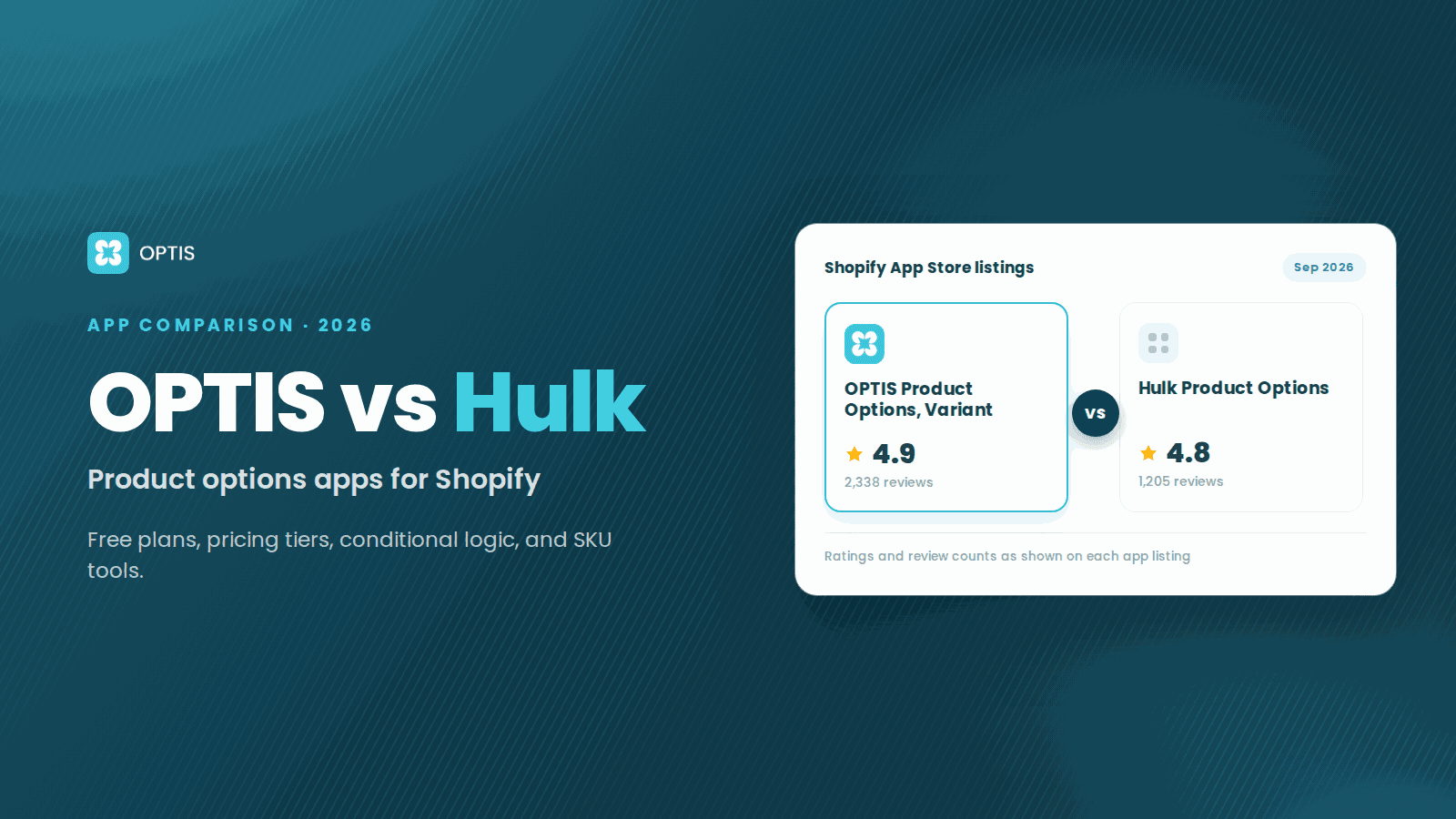
OPTIS vs Hulk Product Options (2026 Comparison)
OPTIS vs Hulk Product Options for Shopify (2026): free plans, pricing tiers, conditional logic, SKU tools, and which app fits your store, from live listings.
8 min read