
Shopify Combined Listings Without Plus: Step-by-Step
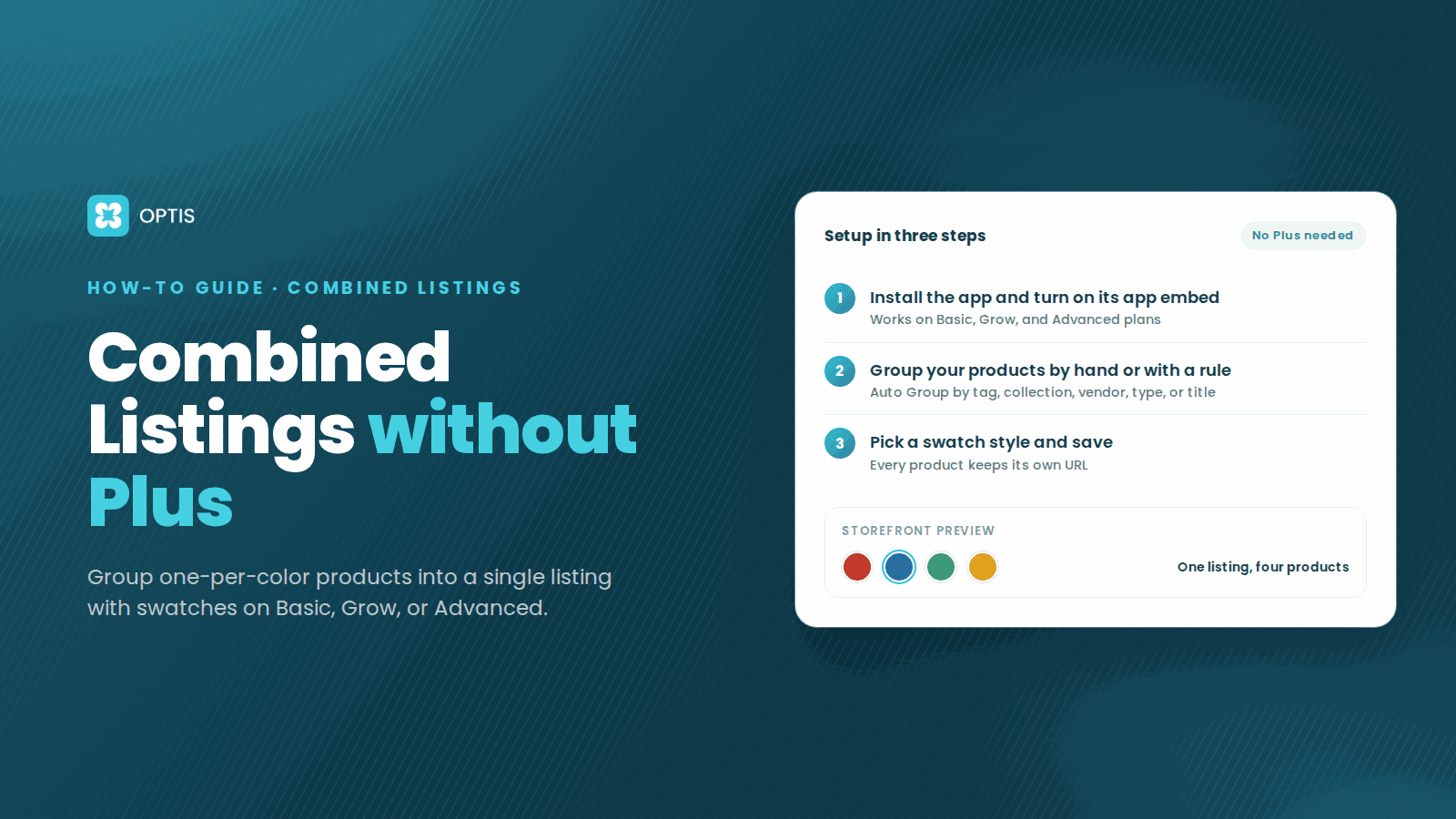
Shopify's own Combined Listings app is available only on Plus and enterprise plans, so stores on Basic, Grow, or Advanced need a third-party app for the same result. With the free OPTIS Combined Listings app, you install it, turn on its app embed, group your one-per-color products by hand or with an Auto Group rule, pick a swatch style for product and collection pages, and save. Shoppers see one listing with swatches, and every product keeps its own URL.
At a glance
- Who this is for
- Basic, Grow, or Advanced stores that sell one product per color, material, or style
- Native Shopify app
- Plus and enterprise plans only (Shopify Help Center, September 2026)
- Any-plan alternative
- OPTIS Combined Listings, free
- Ways to group
- Manual, Auto Groups (tag, collection, vendor, type, title pattern, metafield, custom condition), CSV import, split products
- Where swatches show
- Product pages and collection pages, set separately
- SEO default
- Each product keeps its own URL; optional canonical main product
- App Store listing
- 5.0 from 5 reviews, launched July 29, 2026, not Built for Shopify
In this article
- Why Basic, Grow, and Advanced stores cannot use the native app
- Before you start: get your product data ready
- How to set up combined listings without Shopify Plus
- Manual group or Auto Group: which to pick
- SEO: keep separate URLs or pick a main product
- Special cases: one multi-variant product, or moving from OPTIS Color Swatch
- If swatches do not show up
- Limits, and when Shopify Plus native is the better choice
Why Basic, Grow, and Advanced stores cannot use the native app
Many apparel and home goods stores sell each color as its own product: a Linen Shirt in Sand, another in Olive, a third in Navy. Each has its own photos, SKU, and URL, but the collection page shows three near-identical cards, and the product page gives shoppers no easy way to see the other colors.
Shopify's Combined Listings app fixes this, but as of September 2026 the Shopify Help Center lists it as available only on Plus and enterprise plans. For how the native feature works and when combined listings beat variants, read our complete guide to Shopify combined listings.
On other plans, you need an app to link separate products so shoppers switch between them like variants. This guide uses OPTIS Combined Listings, our free app. It is a display layer: it does not merge products or change your prices, SKUs, or inventory.
Before you start: get your product data ready
- One product per color, material, or style. Each product becomes one swatch. If one product holds every color as a variant, see the split option below.
- Consistent titles. Titles like `Linen Shirt - Sand` and `Linen Shirt - Olive` let an Auto Group match by title pattern and use the text after the separator as the swatch name.
- A dedicated grouping tag. If you prefer tags, use one like `group-linen-shirt` that does not overlap with navigation or collection tags.
- A clear first image. The Auto image swatch style uses each product's image as the swatch.
- Active, published products. Auto Groups skip draft and archived products.
- One family per product. A product can belong to only one group at a time.
- A draft theme. You can enable the app on a draft theme first and test without touching your live store.
How to set up combined listings without Shopify Plus
Seven steps from install to a tested product page. Menu names match the OPTIS Combined Listings admin.
- 1
Install OPTIS Combined Listings
Search for OPTIS Combined Listings on the Shopify App Store and install it. It is free, with every current feature included, and works on any Shopify plan.
- 2
Turn on the app embed
On the app's Home screen, check the App embed status card. Click Activate app embed, switch on OPTIS Combined Listings under App embeds in the Theme Editor, and click Save. To test safely, pick a draft theme in the theme picker first.
- 3
Create a group by hand or with an Auto Group rule
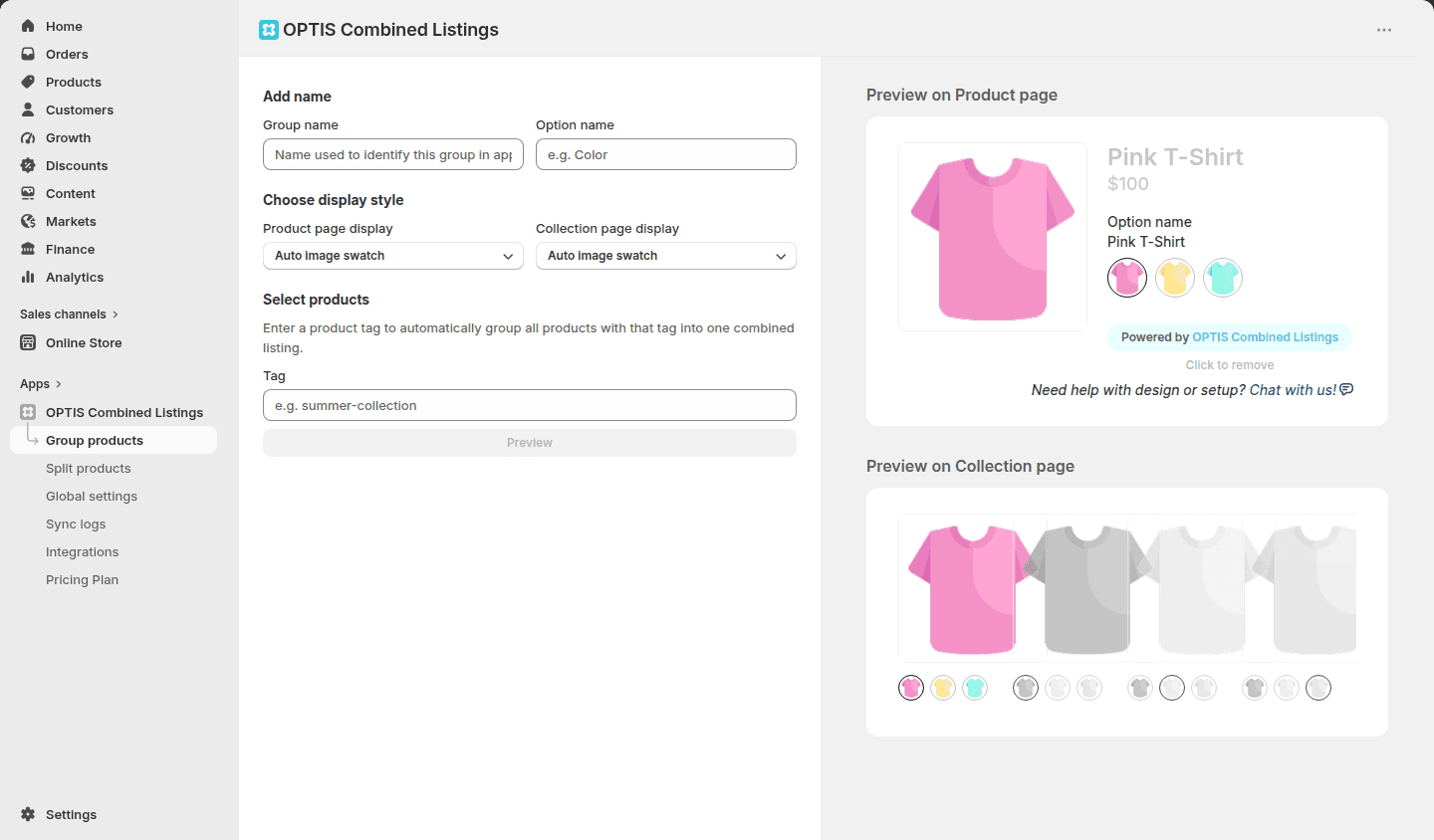
Go to Group products -> Create group. For a few curated families, choose Build by one option and add products. For families that share a tag, collection, vendor, product type, title pattern, or metafield, choose that Auto Groups method and enter the value, such as the tag group-linen-shirt. OPTIS previews every matching active product.
- 4
Name the option and set each swatch value
Enter a Group name (internal only) and an Option name shoppers see, such as Color. Type each product's value or click Auto-name, then drag to set the storefront order. In an Auto Group, remove unwanted products; exclusions, names, and order survive every re-sync.
- 5
Choose display styles for product and collection pages
Under Choose display style, set Product page display and Collection page display separately: Auto image swatch, Custom swatch, Pill swatch, Swatch card, Button, or Dropdown. Choose No show to skip a surface. The previews update as you go.
- 6
Decide how search engines see the group
The SEO canonical product setting defaults to Each product keeps its own URL. Keep it unless your color pages compete in search, then pick one product as the main page.
- 7
Save, then test on a live product page
Click Save, then Preview on storefront. Click each swatch and confirm it opens the right product with its own images and price, then check a collection page. Groups render below the variant picker by default; use Change product groups position to move the app block in the Theme Editor.
Manual group or Auto Group: which to pick
Both give shoppers the same storefront result. The difference is how products get into the group, and who keeps it current.
| Manual group | Auto Group | |
|---|---|---|
| How products get in | You pick them | A rule matches them |
| Syncs when products change | No | Yes, within seconds by default |
| Best for | A few curated families | Catalogs that change often |
SEO: keep separate URLs or pick a main product
By default, grouping changes nothing for search engines. Each product keeps its own URL, title, description, and images, and no duplicate URLs are created. That suits stores where shoppers search for a specific color, such as "olive linen shirt".
If your color pages are thin and compete with each other, set an SEO canonical product so the other products point search engines to one main page, while shoppers still see every swatch. Shopify offers parent and child canonicals natively only on Plus; this setting works on any plan. Our combined listings guide explains how to choose.
Special cases: one multi-variant product, or moving from OPTIS Color Swatch
Every color is a variant of one product
Use Split products. Choose the option to split by, such as Color, and save a draft; nothing is created until you click Publish. OPTIS then creates one product per value, combines them into a group, and archives the original if that option is on. The original is never deleted.
You already group products in OPTIS Color Swatch
Export your groups as a CSV from OPTIS Color Swatch, then import it under Integrations -> OPTIS Color Swatch -> Migrate product groups. Keep Import as drafts on, review and activate the groups, then turn off the Color Swatch app embed so shoppers do not see two swatch widgets.
If swatches do not show up
- App embed off. Check the App embed status card. If you enabled it on a draft theme, preview that theme.
- Store-wide switch off. In Global settings -> Storefront display, turn on Show on product pages and Show on collection pages.
- Group or products not live. The group must be Active, not Draft, and its products active and published to the Online Store.
- Collection pages only. Check the group's Collection page display is not set to No show.
- Cache or theme quirk. Hard refresh or use a private window. Some themes and page builders need a tweak; contact the OPTIS team through live chat.
Limits, and when Shopify Plus native is the better choice
- Already on Plus or enterprise? Try Shopify's native app first. Check its documented limits: up to 60 child products, 3 options, and 2,000 variant option values per listing, free themes on version 15.0.0 or later, online store only, no bundles or subscriptions, and child products are not shown in Search & Discovery filter results.
- Swatch clicks open a sibling page. Each product stays a real product, so a swatch click navigates to that product's page.
- One group per product. To show a product under two angles, such as color and material, use a multi-option group.
- The app is new. OPTIS Combined Listings launched July 29, 2026, has 5 reviews, and is not Built for Shopify. On the free plan, swatches show a small Powered by OPTIS Combined Listings badge, which the team removes on request.
Common questions
Can I use Shopify combined listings on the Basic plan?
Not with Shopify's own app, which the Shopify Help Center lists as available only on Plus and enterprise plans. On Basic, Grow, or Advanced, an app such as OPTIS Combined Listings links separate products into one listing with swatches.
How do I group products by color on Shopify without Plus?
Install OPTIS Combined Listings, turn on its app embed, and go to Group products -> Create group. Add products by hand, or use an Auto Group rule that matches a shared tag, collection, vendor, product type, title pattern, or metafield. Name the option Color, pick a swatch style, and save.
Will combining products into one listing hurt my SEO?
Not by default. Each product keeps its own URL, title, description, and images, and no duplicate URLs are created. To have one page rank for the family, set an SEO canonical product for that group.
Is OPTIS Combined Listings free?
Yes. Every current feature is free, including Auto Groups, bulk tools, CSV import and export, and split products. A paid plan with extra premium features is planned, and features you use today stay available.
Do my prices, SKUs, or inventory change when I group products?
No. Each product stays separate with its own price, SKU, and inventory. When you delete a group, Keep products is the default, so only the grouping is removed.
What happens if I upgrade to Shopify Plus later?
OPTIS Combined Listings works independently of Shopify's native app, so your groups keep working. You can then compare the two, but avoid running two swatch widgets on the same product page.
Next steps
Start with one product family you sell in several colors. Tidy its titles or add a grouping tag, install OPTIS Combined Listings, enable the app embed on a draft theme, and build one Auto Group. Once it looks right on product and collection pages, repeat for the rest of the catalog.
Still comparing options? Read our combined listings apps comparison, or talk to the team about an unusual theme.
Keep reading
OPTIS Combined Listings vs SA Variants (2026)
OPTIS Combined Listings vs SA Variants for Shopify (2026): free vs paid pricing, group limits, Auto Groups vs AI grouping, and which app fits which store.
7 min read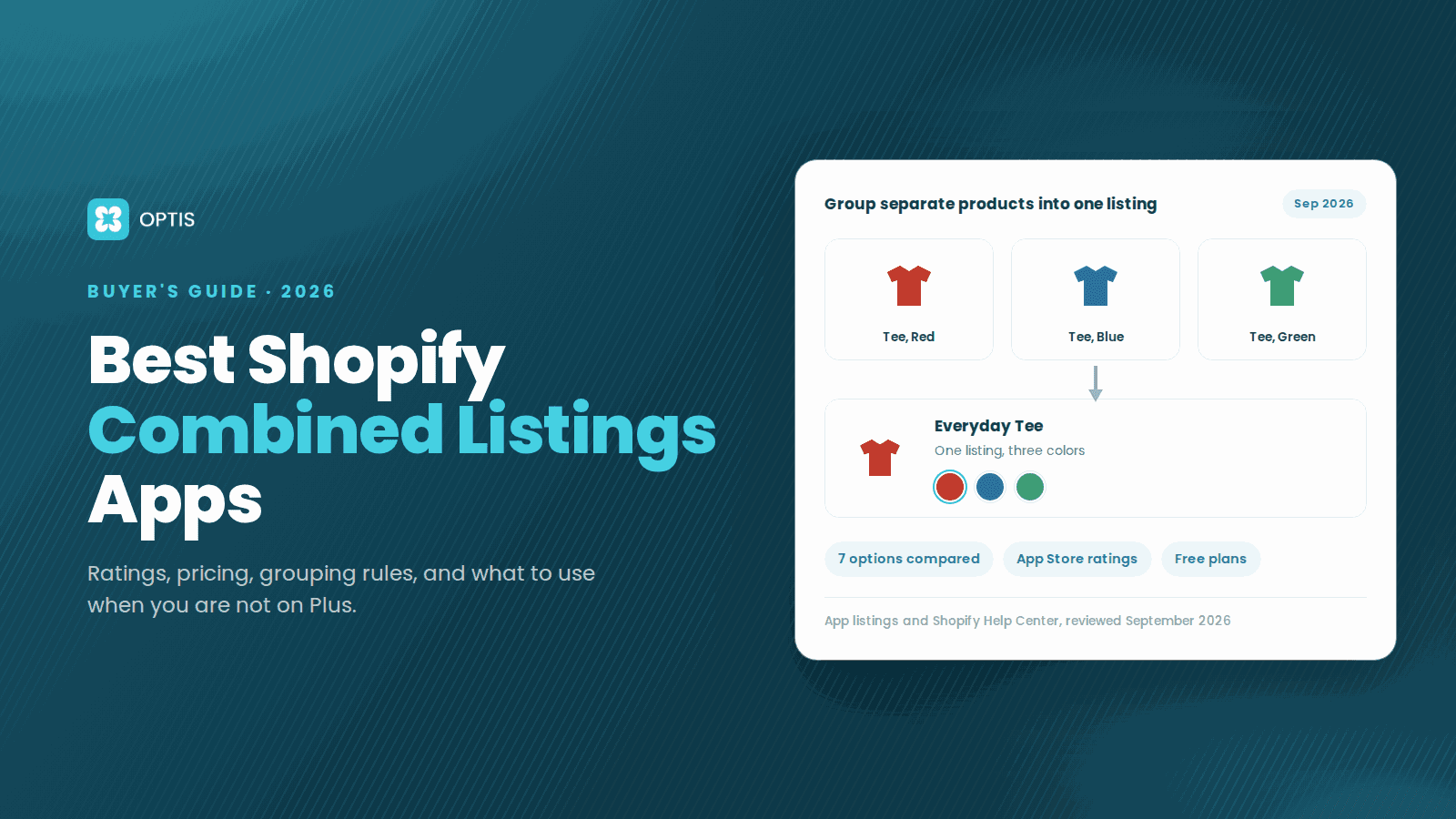
Best Shopify Combined Listings Apps 2026 (Compared)
Compare the best Shopify combined listings apps for 2026: ratings, pricing, grouping rules, and honest weaknesses, plus what to use if you are not on Plus.
11 min read
The Complete Guide to Shopify Combined Listings (2026)
Complete 2026 guide to Shopify combined listings: definition, decision matrix vs variants and separate products, native setup, SEO, and migration.
13 min read